Connecting to VPS

This article applies to Windows VPS’ only. You can also download a connection file when you initially setup your VPS on your VPS Product Page.

Step 1 #

First lets open the Remote Desktop Connection App – This will allow you to connect to your VPS.

Step 2 #

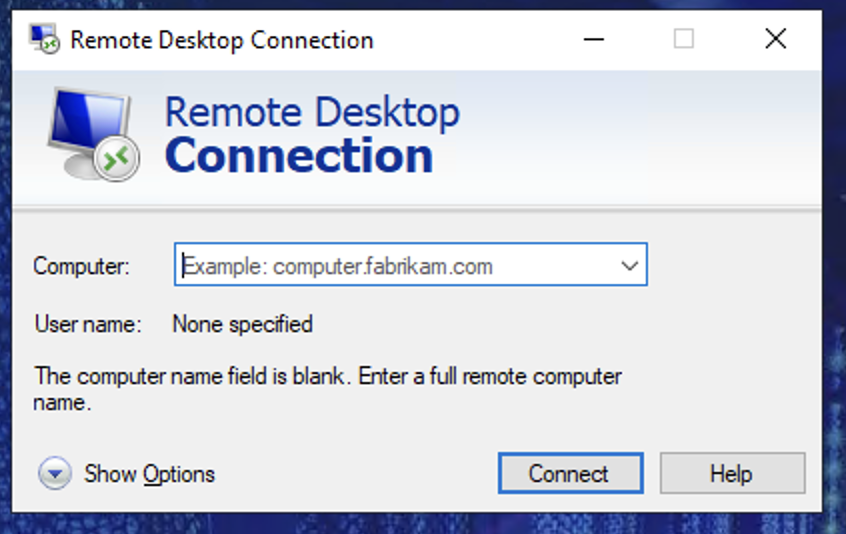
You will be greeted with the following window ๐Ÿ‘‡

Step 3 #

In the “Computer” Box please input the VPS IP Address followed by the port that you received on your order confirmation email and press connect.

Step 4 #

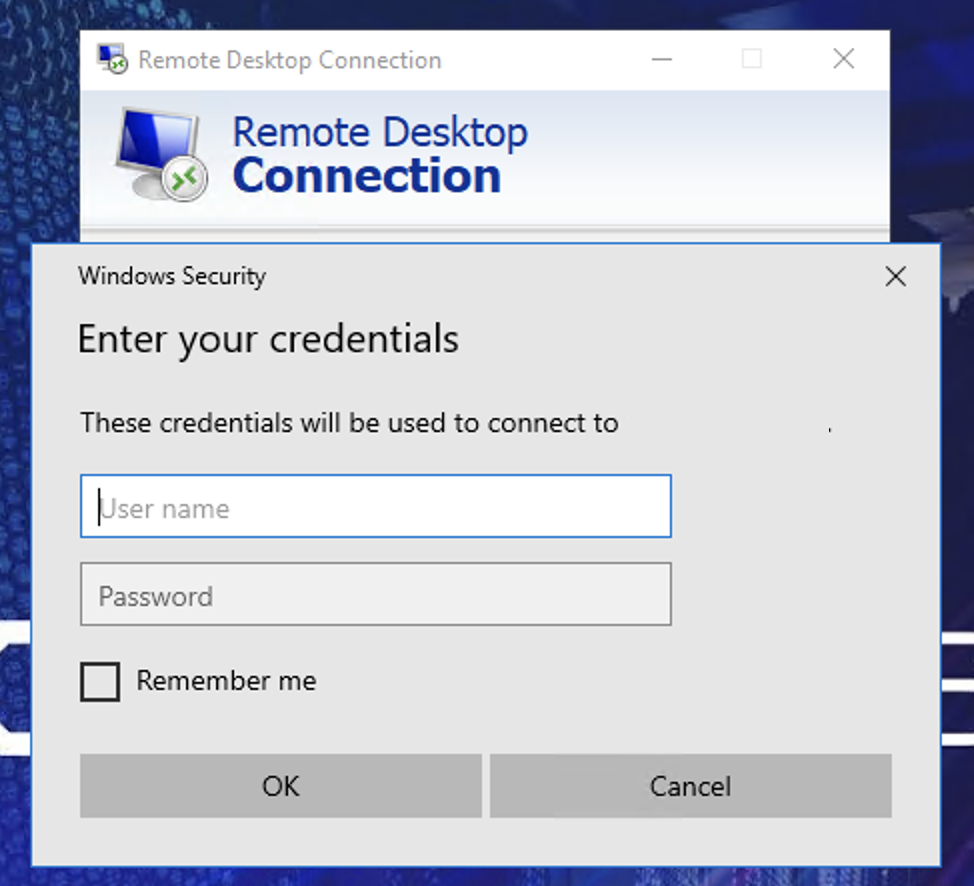
You will then be greeted by the following window ๐Ÿ‘‡

In the username field please enter “Administrator” and in the password field please enter the “VPS Root Password” that you chose when placing your order.

Then press OK

Table of contents

Still need support?

Our team is happy to help. Click the button below to get in touch.

This article applies to Windows VPS’ only. You can also download a connection file when you initially setup your VPS on your VPS Product Page.

Step 1 #

First lets open the Remote Desktop Connection App – This will allow you to connect to your VPS.

Step 2 #

You will be greeted with the following window ๐Ÿ‘‡

Step 3 #

In the “Computer” Box please input the VPS IP Address followed by the port that you received on your order confirmation email and press connect.

Step 4 #

You will then be greeted by the following window ๐Ÿ‘‡

In the username field please enter “Administrator” and in the password field please enter the “VPS Root Password” that you chose when placing your order.

Then press OK

Still need support?

Our team is happy to help. Click the button below to get in touch.